
In September, a small healthcare recruitment agency asked me for a short video to post on Instagram, and possibly TikTok and Facebook. The goal was simple: explain what the agency does and why doctors should get in touch.
I had never edited a video in my life. I had no budget either, because I wanted to see how far free plans could take me.
The result was a 25-second vertical AI promo video, made with three free tools: Leonardo for the video clips, ElevenLabs for the voiceover and CapCut to put it all together. It cost me $0 in subscriptions. The team liked it, and the founder wants more.
If you’re trying to figure out how to make AI videos for free, this is exactly how I did it: the settings, the prompts, the credit costs, what went wrong, and the one thing I learned afterwards that anyone making a video for a business needs to know before posting.
What I Made
The finished video is 25 seconds long, in 9:16 vertical format at 720 x 1280. It’s in French, because the agency’s audience is French-speaking doctors.
It has five parts:
- A hook over a clip of a doctor walking down a hospital corridor
- A line about how complicated the paperwork seems, over a clip of a desk covered in documents
- The agency’s logo with a short tagline
- Three short benefit lines over a clip of two professionals shaking hands
- A closing card with the logo and a call to action pointing to the link in bio
Each scene has a voiceover, and the on-screen text matches it. There’s no music.

How to Make AI Videos for Free: The Three Tools I Used
| Job | Tool | Plan | What it cost me |
|---|---|---|---|
| Video clips | Leonardo | Free | $0 |
| Voiceover | ElevenLabs | Free | $0 |
| Editing and captions | CapCut (web version) | Free | $0 |
How I picked them. Picking tools is the first real decision in how to make AI videos for free. I already knew CapCut, since it’s one of the best-known free editors. For the voice, I searched for free AI voice generators and found several options, including ElevenLabs, Fliki and MiniMax Audio. I went with ElevenLabs mostly on instinct: I’d heard of it before, so I trusted it more. For the video, I knew there were plenty of free options, but I started with Leonardo to test it, it delivered, and I didn’t look further.
That’s worth being honest about. I didn’t run a careful comparison of every tool. I picked reasonable ones and focused on learning the process.
Step 1: Start With the Script
The first step in how to make AI videos for free has nothing to do with AI: you need a tight script.
The agency’s team gave me the script, so I didn’t have to write it. It was short, direct and sharp, and we used the first draft.
If you’re writing your own, keep it tight. A 25-second promo video only has room for a hook, one problem, a few benefits and a call to action. Each line should fit comfortably inside one five-second clip, for a reason you’ll see in step 2.
I didn’t plan shots or make a storyboard. I opened my laptop with the script and started testing. That worked for a first video, but planning which visual goes with each line would have saved some trial and error.
Step 2: Generate the Video Clips in Leonardo
Clips are the hardest part of learning how to make AI videos for free, because video generation uses far more credits than anything else. I used Leonardo’s text-to-video feature.
The model choice was all about credits. My free account received 150 credits a day. Most video models and higher resolutions cost more than 70 credits per clip, and some cost hundreds. Motion 2.0 Fast at 480p cost 70 credits for a five-second clip of good quality, so I could make two clips a day for free.
My settings:
| Setting | Choice | Why |
|---|---|---|
| Model | Motion 2.0 Fast | Cheapest option that still looked good |
| Video dimensions | 9:16, Fast (480 x 832) | Vertical format for Reels, at the lowest credit cost |
| Prompt Enhance | Auto | Leonardo refines the prompt automatically |
| Vibe | Stock Footage | Realistic b-roll, right for a hospital scene. Pro Photo is the backup if it looks flat |
| Lighting | Soft Light | Clean, gentle, professional light for a medical setting |
| Color | Cool | Blue and white tones give a clean, clinical look |
| Motion Control and Motion Elements | None | Not needed for simple shots |
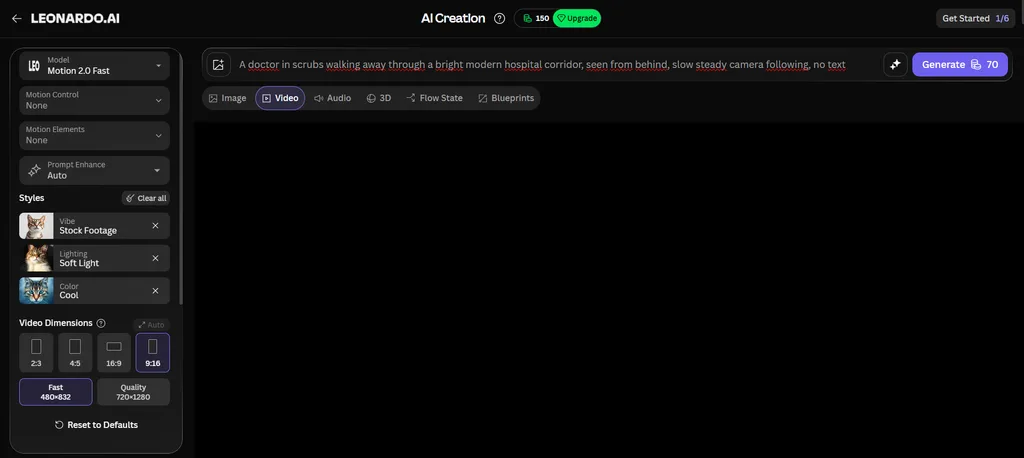
My three prompts, exactly as I used them:
- A doctor in scrubs walking away through a bright modern hospital corridor, seen from behind, slow steady camera following, no text
- A tidy desk with a stack of documents and a rubber stamp beside an open laptop, bright modern office, slow camera push-in, shallow depth of field, no people, no text
- Two professionals shaking hands in a bright modern office, seen from the side, no faces visible, slow steady camera, no text
A few things in those prompts did a lot of work. “Seen from behind” and “no faces visible” avoid the faces and expressions that AI video often gets wrong. “No text” stops the model from adding garbled lettering. “Slow steady camera” keeps the motion calm and believable.
I kept the first generation of all three. Each one was what I needed on the first try.
What went wrong. The desk clip isn’t clean. Leaves are overlaid on the scene and the desk looks partly transparent, as you can see in the middle still above. When I saw it, I knew it could be better. But the message still came through, and my priority was the voice and the overall video. Looking back, I could have tried another prompt or another tool for that one clip. If you have the credits, regenerate any clip with obvious artifacts before you edit.
One more thing to know about Leonardo’s free plan. Leonardo says you can use free-plan images and videos commercially, but free-plan creations are public, and Leonardo owns them, so other users can see and reuse them (Leonardo’s explanation). For generic b-roll like mine, that’s fine. For anything you want to keep exclusive, it isn’t.
Step 3: Create the Voiceover in ElevenLabs
ElevenLabs doesn’t force you to choose a plan when you sign up. The free plan gives you 10,000 credits a month, according to ElevenLabs’ pricing page.
Choosing a voice. I listened to a lot of voices and picked Simon, one of the free voices, because it sounded clear and easy to follow. I used the Eleven Multilingual v2 model, which handles French well. Many more voices are available on the paid plans, but the free ones were enough.
Credits per line. Each voice line cost me roughly 60 to 120 credits, depending on its length. The whole voiceover fit easily inside the free allowance.
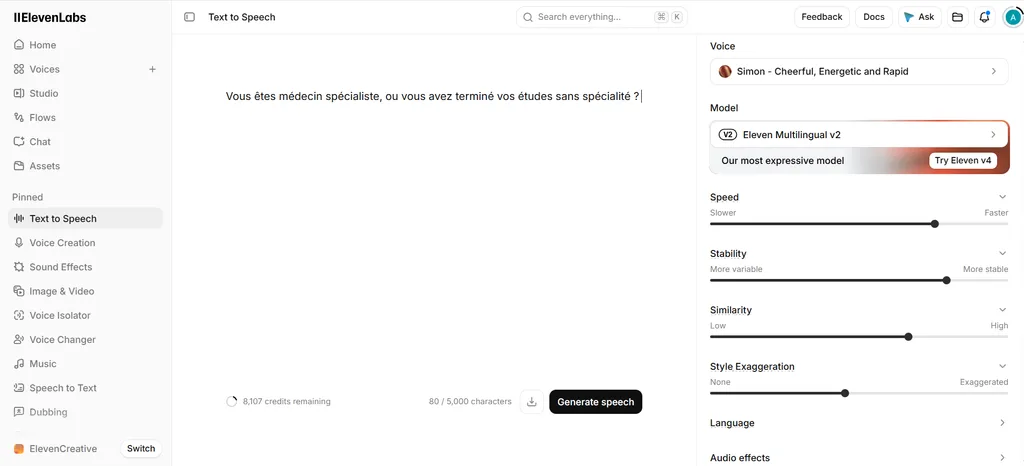
Pronunciation. I had no problems with the French at all, including medical and administrative terms. I regenerated only one line, because it was too fast. The second version was right. Every other line was usable on the first try. When you regenerate, ElevenLabs changes the delivery slightly (tone, speed), so it’s easy to get a better take.
A feature I want to try next. ElevenLabs can also create videos from a text prompt using an avatar. You can pick from ready-made avatars or create your own, which I saw would cost about 1,000 credits, and then lip-sync your voiceover to it. The avatar video feature I looked at requires the Creator plan, which costs $22 a month (with the first month at half price when I checked).
Step 4: Edit Everything in CapCut
I used the free web version of CapCut and started a new project in 9:16 format.
Fitting clips to voice. Leonardo makes five-second clips, which almost matched my voice lines. When a line ran longer or shorter, I stretched or slowed the clip in CapCut. It was quick and caused no problems.
Captions. I typed the captions manually rather than using auto-captions. My settings:
- Font: Rubik, bold, size 18
- A black outline and a drop shadow, so the text stays readable over any background
- Size and position adjusted by eye until they looked right
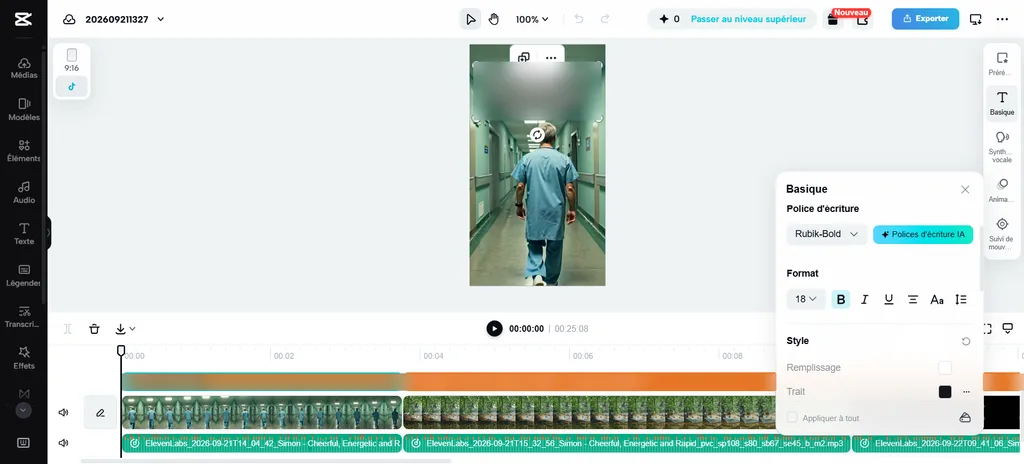
Effects. I added a zoom-in effect on the logo for the intro. No music.
Paid features. Some CapCut features are marked with a purple diamond, which means they’re part of a paid plan. I didn’t need any of them for this video. Whether you’d need them depends on what you’re making.
Export. I used the blue Export button at the top right, chose MP4 and downloaded it at 720 x 1280. My export came out without a watermark.
How Long It Took
The whole video took me a day and a half. Most of that was waiting: Leonardo’s free credits refresh daily, and I could only afford two clips a day. Without that wait, I estimate the work itself would have taken two to three hours, and that was as a complete beginner. That’s the realistic time cost of learning how to make AI videos for free with no experience.
The One Thing I Learned Afterwards: Check the License
I made this video entirely on free plans. After finishing it, I checked the terms, and there’s one catch anyone making an AI promo video for a business needs to know.
ElevenLabs’ free plan doesn’t include a commercial license. Its pricing page lists the commercial license for speech and music from the Starter plan up, and free-plan content must credit ElevenLabs, according to BIGVU’s ElevenLabs pricing guide. A promo video for a business is commercial use.
The fix is cheap. ElevenLabs’ Starter plan costs $6 a month, and when I checked, the first month was $1. Upgrade before you generate the voiceover you’ll actually publish.
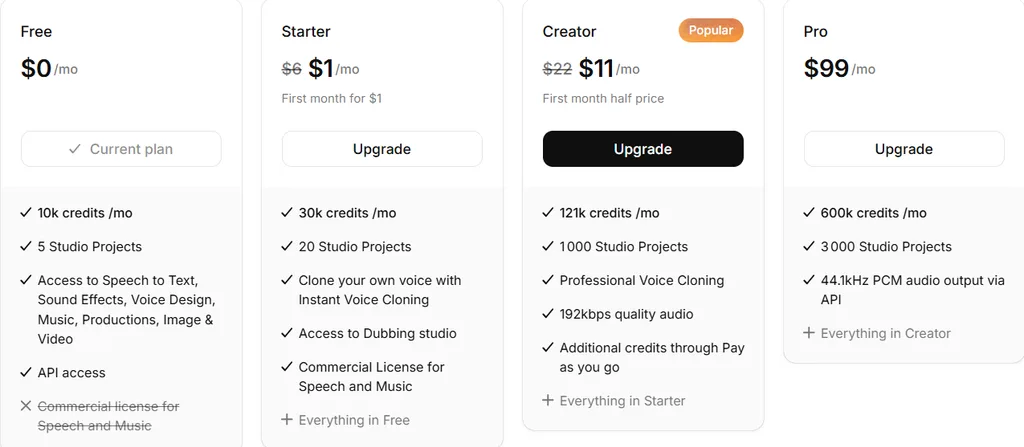
So the honest answer for anyone asking how to make AI videos for free for a business is: almost. You can learn, draft and test everything for $0. For the final business version, budget about $6 for the voice.
| Tool | Free plan for a business video? |
|---|---|
| Leonardo | Commercial use allowed, but outputs are public and owned by Leonardo |
| ElevenLabs | No commercial license. Starter plan ($6/month) needed |
| CapCut | Free plan was enough for my video |
Always check each tool’s current terms yourself before publishing, since free plans change.
What I’d Do Differently Next Time
This was my first video, so I focused on learning the process rather than perfecting the result. If you’re learning how to make AI videos for free, here’s what I’d change based on my first attempt:
- Fix weak clips. I’d regenerate the desk clip or try another tool instead of accepting the artifacts.
- Test more video tools. Leonardo worked, but I’m sure there are free alternatives that would do some shots better.
- Plan the shots. A simple list of which visual goes with each line would save time and credits.
- Consider a human voice. The AI voice was clear and had no pronunciation issues, but a real person from the team recording the lines would make the video feel more personal. The recordings drop straight into CapCut.
- Sort out licensing first. Upgrade ElevenLabs before generating the final voiceover.
Would I Pay for Any of These Tools?
The only tool I’m considering paying for is ElevenLabs’ Creator plan, for its avatar video feature. Creating a video from just a script and a custom avatar could replace much of the Leonardo and CapCut work. But I haven’t tested it yet, and I’d want to see real results before committing. I’d also look at alternatives to ElevenLabs first, in case there’s a better option I don’t know about.
For anyone learning how to make AI videos for free, though, the free plans got me a finished, usable result.
FAQs
1. Is it really possible to make AI videos for free?
Yes, for learning and drafting. Learning how to make AI videos for free is realistic with today’s free plans. I made a 25-second promo reel with the free plans of Leonardo, ElevenLabs and CapCut. For a business video you publish, ElevenLabs’ free plan doesn’t include a commercial license, so budget for its $6 Starter plan.
2. How many videos can you make on Leonardo’s free plan?
It depends on the model and resolution. My free account received 150 credits a day, and Motion 2.0 Fast at 480p cost 70 credits per five-second clip, so I could make two clips a day. Higher-quality models cost more credits per clip.
3. Is ElevenLabs free for commercial use?
No. The free plan gives you 10,000 credits a month but doesn’t include a commercial license, and free-plan content must credit ElevenLabs. The commercial license starts with the Starter plan.
4. Does CapCut add a watermark on free exports?
My MP4 export from the free CapCut web version came out without a watermark. Some effects and features are marked as paid with a purple diamond, so avoid those if you want to stay on the free plan.
5. How long does it take to make an AI video as a beginner?
Learning how to make AI videos for free took me a day and a half the first time, mostly waiting for Leonardo’s daily free credits to refresh. Without that wait, the work itself would have taken me about two to three hours, with no prior editing experience.
6. What’s the best prompt style for AI video clips?
Keep prompts specific and simple: describe the subject, the setting, the camera movement and the lighting. Adding “no text” prevents garbled lettering, and framing people from behind or without visible faces avoids the facial artifacts AI video often produces.
The Bottom Line on How to Make AI Videos for Free
If you’ve been wondering how to make AI videos for free, the answer is simpler than it looks. You don’t need editing experience or a budget to make a decent AI promo video. With Leonardo, ElevenLabs and CapCut, I went from zero experience to a finished 25-second reel that the client liked, using only free plans.
The free plans have limits: daily credits, public outputs on Leonardo, and no commercial license on ElevenLabs. Know them before you publish. But as a way to learn the skill and test an idea, it’s hard to beat $0.
My next step is to make the second video better: cleaner clips, a planned shot list, and possibly a real human voice.
If you want to explore more tools first, our guide to the best AI tools for video editing compares ten options, including CapCut and Fliki.

Mahdi Ayadi writes and edits AI Empire Media. He covers AI models, tools and pricing with one question in mind: is this actually worth paying for?
Before writing about software, Mahdi spent more than seven years selling it, in B2B SaaS sales and account management across cybersecurity, marketing technology and travel technology. That experience shapes how he reads vendor pricing pages, benchmark claims and feature lists, and it’s why his articles focus on real costs, trade-offs and sources readers can check for themselves.
He also builds AI-powered automation for sales and onboarding workflows, which informs his coverage of AI agents and automation tools. He works in English, French, Arabic and Russian.