

I wanted to make a short animated series for kids: a cartoon bird who travels through time to visit ancient places. I had no animation team and no 3D skills, and I didn’t want to spend money before I knew what worked. So in October I spent a couple of weeks testing AI video tools to see whether any of them could do the job.
This is what happened. I tried five tools hands-on (four produced video; Kling blocked me before I could generate anything), ran one fair head-to-head comparison, and hit plenty of strange failures, including a campfire burning on a kitchen shelf. I also tried building the character in free 3D software instead, to see if I could skip AI video altogether.
If you’re looking for an AI video generator for animation, especially for a cartoon with a recurring character, this is my honest production diary: what each tool cost, what it got right, and what it got wrong.
What I Tested, and How
Not every AI video generator for animation got the same test, so here is exactly what I did with each one.
| Tool | What I did | Plan used |
|---|---|---|
| Gemini (Google) | Designed the character and reference images | Not tracked |
| Veo 3.1 Lite (Google Flow) | A 3-clip story, dialogue scenes, and the head-to-head | Free daily credits |
| Gemini Omni Flash (Google Flow) | The head-to-head against Veo 3.1 Lite | Free daily credits |
| PixVerse V6 | One 5-second clip from the reference image | Trial credits |
| Wan 3.0 Reference to Video (RunDiffusion) | One 5-second night scene from the reference image | Free credits |
| Kling | Tried, but couldn’t generate anything | Free access |
Only one comparison is perfectly fair: Omni Flash against Veo 3.1 Lite, with the same prompt, the same start frame and the same character references. Everything else is a single test of one tool, and I’ve labeled it that way.
Credit costs below are what each tool’s interface showed me when I tested. Prices change often, so check before you buy.
Step 1: Design the Character First, in Still Images
Before animating anything, I designed the character in still images with Gemini: a reference sheet with several views and expressions, plus images of his home in a village in the clouds.
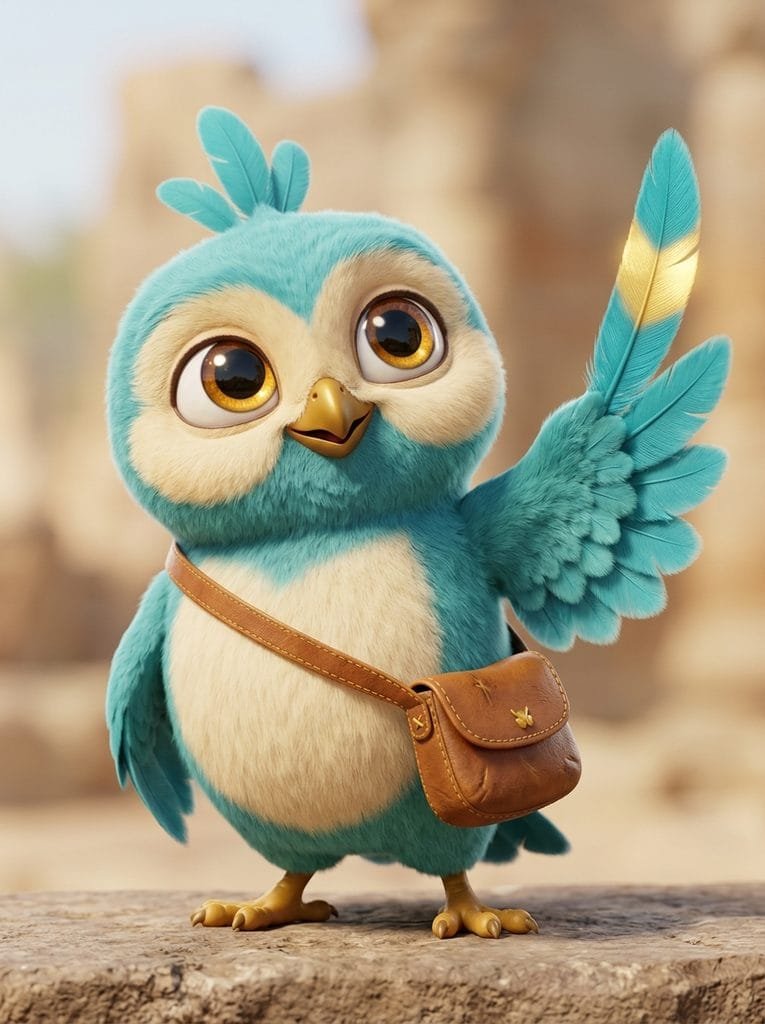
This turned out to be the most important step in the whole process. Every AI video generator for animation that I tested works better when you give it a reference image of the character. Without one, each new clip invents a slightly different character.
One warning: a perfect reference image doesn’t guarantee a consistent character once he starts moving. That’s where the tools started to differ.
Veo 3.1 Lite in Google Flow: The Best Value
As an AI video generator for animation on a tight budget, Google Flow is hard to beat. It gave me 50 free credits when I signed in, and the allowance appears to refill daily. Veo 3.1 Lite cost 10 credits for an 8-second clip at 720p, so the free allowance covered five clips, or 40 seconds of video, per day.
What I made: a three-clip story in vertical 9:16. The character gets ready to step into a magic portal, flies through a golden vortex, and lands in an ancient harbour.
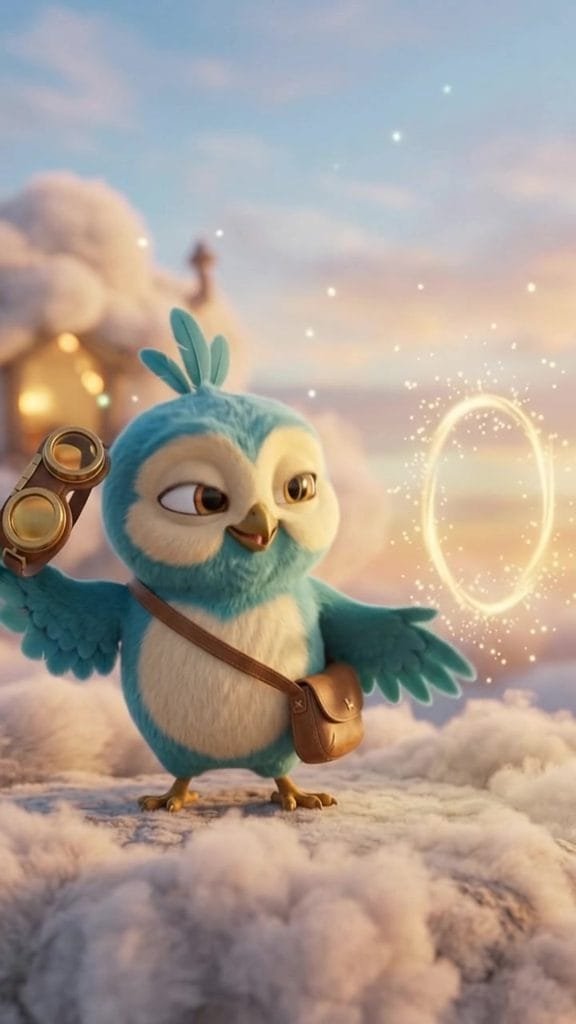

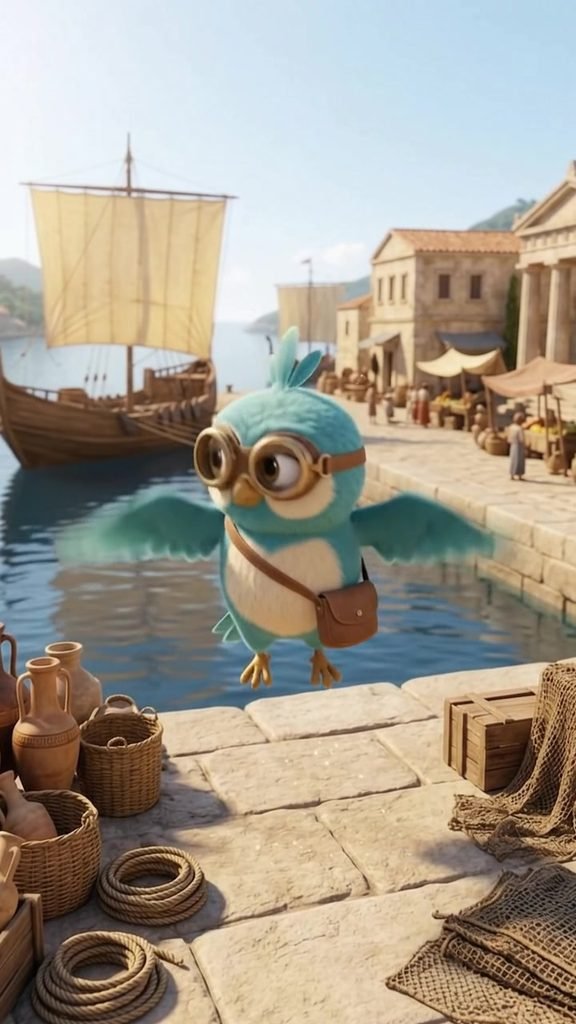
What worked: the quality came close to an animated film. The character stayed consistent across all three clips, and the magic effects (the portal, the vortex, the flash of light) looked very good. In a separate dialogue scene, Veo also generated speech, music and sound effects, and the father character’s lip sync was good.
What went wrong:
- It invented its own ending. At the end of the first clip, Veo showed a forest through the portal, even though my story continued in a harbour. The next clip had to start over.
- Two portals. My reference image already contained a portal, and my prompt asked for one too. Veo drew both.
- The sound didn’t match between clips. Volume differed by about 10 dB from one clip to the next, and the audio cut off at every join.
- A human-looking face. In one family scene, the mother bird’s face came out almost human, even though her body matched the reference.
- Spelled-out words. When I wrote “HUGE” in capital letters in the prompt, the character pronounced it letter by letter.
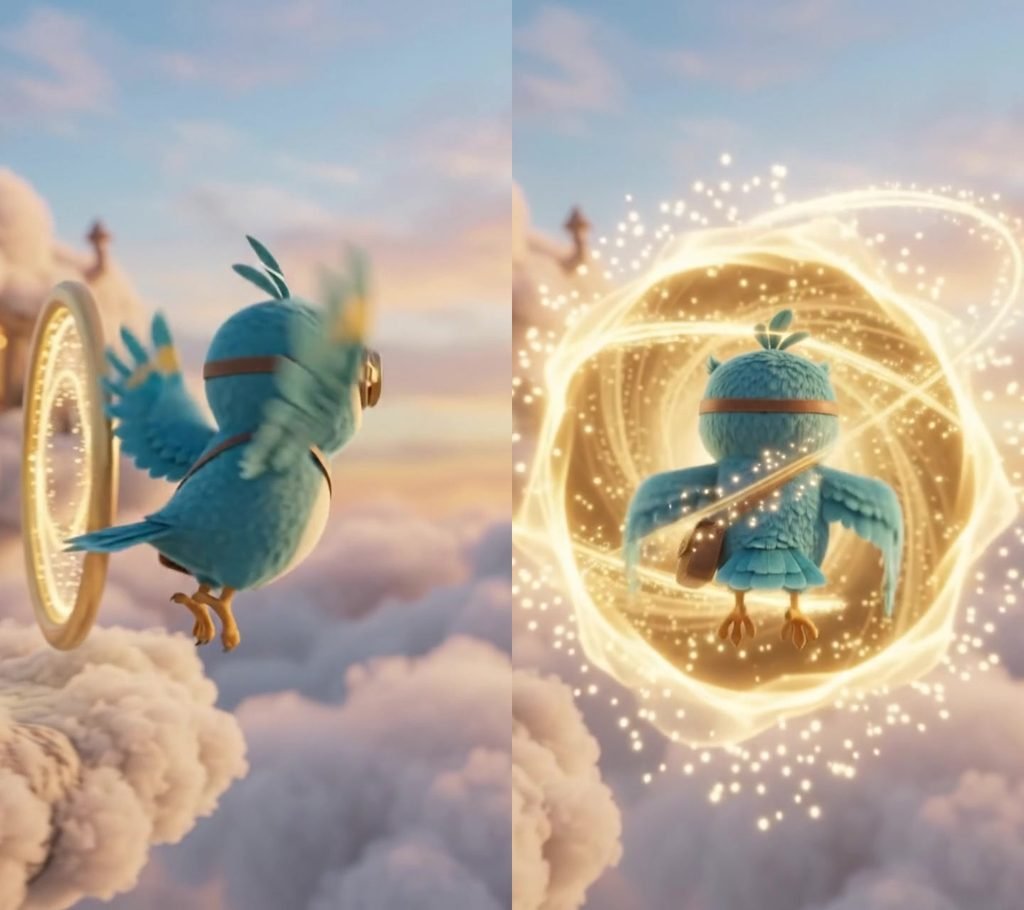
The joins between clips looked rough until I re-edited them: trimming frames, adding a white flash transition and balancing the sound. If you plan a series in Veo, plan your clips so each one ends where the next begins, and expect to fix the audio in an editor.
The Fair Test: Omni Flash vs Veo 3.1 Lite
For this test I used a different pair of characters: a young mandarin duck and his father in a cosy treehouse kitchen. I gave both models exactly the same prompt, the same start frame and the same character references, for an 8-second clip in 16:9. In Flow, Omni Flash cost 12 credits for 8 seconds at 720p, and Veo 3.1 Lite cost 10.
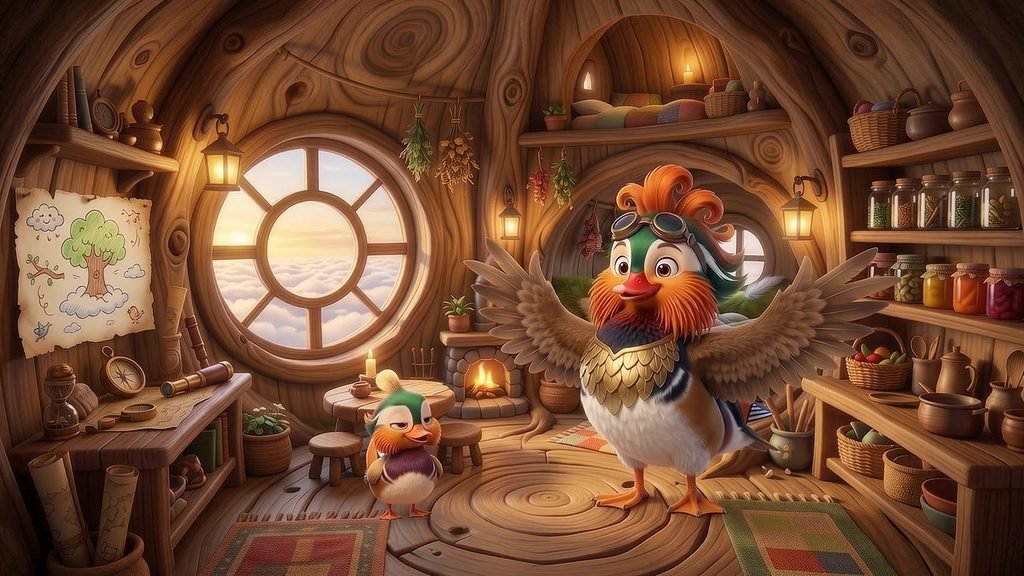
Omni Flash: the room stayed exactly as in the start frame, and the father kept the right size, design and gold chest plate. The one flaw: the young duck’s golden-tipped crest feather turned into a pale tuft partway through.
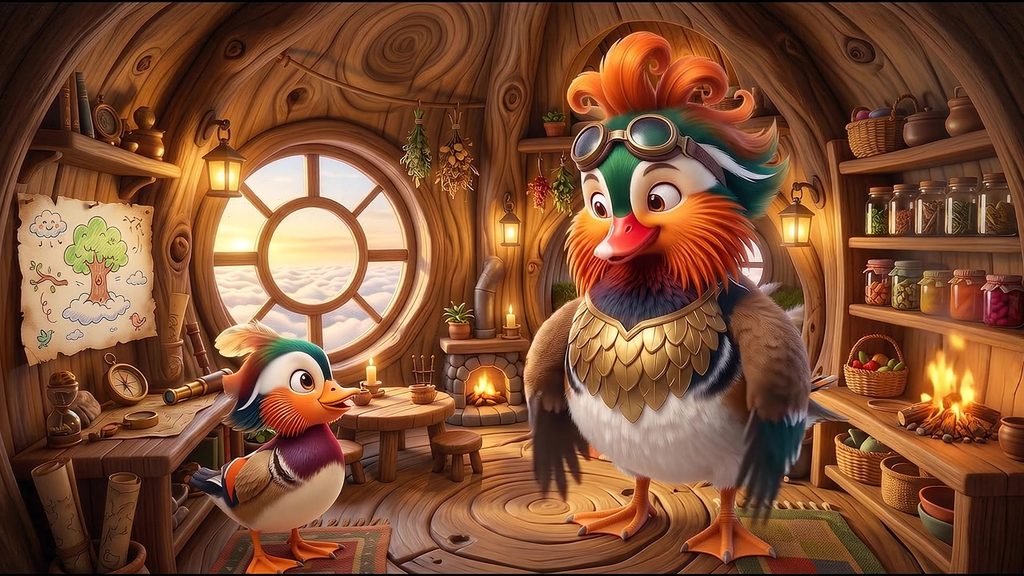
Veo 3.1 Lite: the camera pushed in on its own, the young duck came out as a different design, the father became oversized, and a campfire appeared, burning on a kitchen shelf. My verdict at the time was one word: horrible. I dropped it.
The winner was clearly Omni Flash, for 2 extra credits per clip. For simple scenes with one character, Veo 3.1 Lite did well in my story test. For scenes with two characters in a detailed set, Omni Flash held together far better. That’s the clearest lesson of my tests: the best AI video generator for animation depends on the scene.
PixVerse V6: Strong Consistency, With a Watermark
To see how a dedicated AI video generator for animation compares, I tested PixVerse V6 with trial credits: one 5-second clip at 720p, animated from the character’s reference image. It cost 50 of my 60 trial credits.
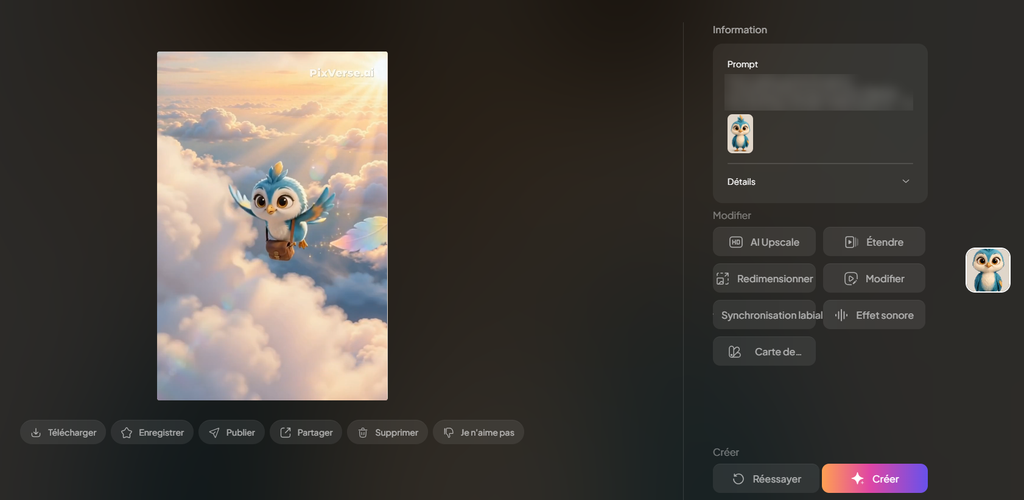
What worked: the character stayed remarkably consistent for the whole clip. As a test of whether an image-to-video model could animate my character faithfully, it passed.
The catches:
- The watermark. Trial and free output carries a visible PixVerse watermark in the top-right corner. Watermark-free video starts with the paid Standard plan, according to CostBench’s PixVerse breakdown.
- The credits ran out fast. One 5-second clip used almost the entire trial.
- Five seconds is short for telling a story.
PixVerse is also a gateway to other models. When I checked the credit costs for a 720p clip in its interface, this is what each model showed:
| Model inside PixVerse | Credits per second (720p) | Tested? |
|---|---|---|
| PixVerse V6 | 10 | Yes |
| Kling 3.0 Standard | 28 | No |
| Wan 3.0 | 30 | No |
| Happy Horse 1.0 | 30 | No |
| Kling O3 Standard | 35 | No |
| Seedance 2.5 | 75 | No |
Costs change with duration, resolution, audio and settings, so treat these as a snapshot.
Wan 3.0 Reference to Video: The Most Faithful
I tested Wan 3.0 on RunDiffusion, where my account had 600 free credits. Wan 3.0’s Reference to Video mode cost 540 of them for a single 5-second clip at 480p (854 x 480), so I got exactly one attempt and no retakes.
What I made: the character at night in his cloud village, looking up at the moon, with a wing flap and a glowing feather.


What worked: this was the most faithful to the reference image of anything I tested. The eyes, the three crest feathers, the gold band on the wing feather and even the small emblem on the satchel all matched. The moonlit blue scene, the glowing windows and the moon looked good. It followed the camera push-in I asked for, and it generated no voices, as instructed.
What went wrong:
- The golden feather flickered. It appears and disappears between frames, and the face shifts slightly.
- Two styles of house. It drew both thatched cottages and dome houses in the same village.
- The character was lit a little too warmly for a moonlit scene.
- 480p looks soft, especially on a large screen.
Wan is worth it for a difficult close-up where the character must look exactly right. For a whole episode, the cost adds up quickly (see the table below).
Kling: Blocked Before I Could Test
I tried Kling’s free access to animate the reference image. The upload first failed with a file-size error. When it finally worked, generation was blocked with a message saying non-members temporarily couldn’t submit new tasks.
So I have no verdict on Kling’s quality. The lesson is about free tiers: if an AI video generator for animation can block free users at busy times, you can’t plan a production schedule around it.
What Each Tool Costs per Second of Video
When you compare any AI video generator for animation, the credits mean different things on every platform, so I converted everything to dollars per second of video, using each tool’s paid plan.
| Tool | Credits per clip | Paid plan used for the math | Cost per second |
|---|---|---|---|
| Veo 3.1 Lite (Flow) | 10 per 8 s (720p) | Google AI Pro, $19.99 for 1,000 credits | About $0.025 |
| Gemini Omni Flash (Flow) | 12 per 8 s (720p) | Google AI Pro | About $0.03 |
| Veo 3.1 Fast (Flow) | 20 per 8 s | Google AI Pro | About $0.05 |
| PixVerse V6 | 50 per 5 s (720p) | Premium, $60 for 15,000 credits | About $0.04 |
| PixVerse V6 | 50 per 5 s (720p) | Standard, $10 for 1,200 credits | About $0.08 |
| Wan 3.0 (RunDiffusion) | 540 per 5 s (480p) | Runnit Pro, $23.99 for 30,000 tokens (yearly billing) | About $0.09, at 480p only |
Plan prices: Google AI Pro is $19.99 a month with 1,000 Flow credits, and AI Plus is $4.99 with 200, according to CostGoat’s Google Flow pricing. When I checked, Google was offering Pro at $9.99 a month for the first two months. PixVerse prices are from CostBench’s breakdown, and Runnit prices are from RunDiffusion’s pricing page. I haven’t tested Veo 3.1 Fast, so I can’t say whether its quality justifies twice the credits of Lite.
One more cost to plan for: retakes. A cheap clip that needs three attempts can cost more than an expensive one that works first time. Budget two to three times your finished episode length in generated footage.
Three Problems I Kept Running Into
Whichever AI video generator for animation you choose, watch for these three issues. They came up repeatedly in my tests:
- Shaky “locked” shots. Even when the camera was meant to be still, the clips wobbled by about half a pixel per frame, which reads as shaking on screen. Stabilising in the editor cut it to about a quarter.
- Characters that grow. In a two-character shot, the speaking character grew by about 50% in the first second, with or without character references.
- Edits that don’t do much. A video edit in Flow showed a cost of 12 credits but charged 20, and when I compared the frames, the output was practically identical to the input.
Could I Skip AI Video and Use Free 3D Software?
Alongside testing each AI video generator for animation, I tried a completely different route: building the character as a 3D model in Blender, which is free. I don’t know Blender, so I had an AI assistant (Claude) write Python scripts that built and animated the model, and I ran them on my laptop.
The speed was impressive. A 5-second test animation (120 frames at 640 x 360) rendered in 33 seconds in total, including building the scene and making the video file. A full turnaround of the character from four angles took 24 seconds, and it cost nothing.
The quality was the problem. The script built the character from simple shapes: body, face, eyes, a crest of 15 feathers, wings, legs and a satchel, all on a 22-bone skeleton. My best version matched the reference outline by 84.8% from the front and 81.6% from the side. On screen, though, it looked like a toy next to the film-quality reference. After one round of fixes I couldn’t see a difference from the previous version.
Along the way, the first face looked like the character was wearing glasses, the body came out shaped like a bowling pin, the eyelids made him look grumpy, the first fur looked like static, and a stray feather poked out between his legs.
The lesson: a 3D model built from simple shapes hits a ceiling far below what AI video gives you from a good reference image. To do better in Blender, you need a properly sculpted model, which means hiring a 3D artist, learning to sculpt, or trying an AI image-to-3D tool. For a solo creator on no budget, an AI video generator for animation wins.
My Verdict
Here’s where each AI video generator for animation landed in my tests.
Best overall: Google Flow. It has the lowest cost per second, a free daily allowance, and the best overall results for the price in my tests. Use Omni Flash for scenes with more than one character, where it clearly beat Veo 3.1 Lite in my fair test, and Veo 3.1 Lite for simple single-character shots.
Most faithful to the reference: Wan 3.0 Reference to Video. It’s the closest match to the character design, but expensive and only tested at 480p. Keep it for close-ups that must be perfect.
Best free test: PixVerse V6. It showed strong character consistency on trial credits, but the free output is watermarked.
What I’d avoid:
- Paying for a year of any tool before testing it.
- Building a schedule around free tiers that can block you, as Kling did.
- Building a whole episode from dozens of separate clips without planning how each one ends.
I’m continuing my series with the duck family. The next challenge is keeping the characters consistent across a full episode, not just a single clip.
FAQs
1. What is the best AI video generator for animation?
In my tests, Google Flow gave the best results for the price. Omni Flash handled scenes with two characters best, and Veo 3.1 Lite was the cheapest at about $0.025 per second on the Google AI Pro plan. For the most faithful match to a character reference, Wan 3.0 Reference to Video did best, at a much higher cost.
2. Can you make an animated cartoon with AI for free?
You can test for free, but not produce a full episode. Google Flow gave me 50 free credits, which appear to refill daily: enough for five 8-second Veo 3.1 Lite clips. PixVerse and RunDiffusion trial credits each covered about one 5-second clip, and PixVerse’s free output has a watermark.
3. How do you keep an AI cartoon character consistent between clips?
Design the character in still images first and give every AI video generator for animation the same reference image. Plan each clip to end where the next begins, avoid putting the same object in both the reference image and the prompt, and expect to fix joins and sound in an editor.
4. How much does AI animation cost per minute?
At the prices in my table, one minute of finished video costs roughly $1.50 in Veo 3.1 Lite, $1.80 in Omni Flash and $2.40 in PixVerse V6 on the Premium plan, before retakes. Since you’ll typically generate two to three times more footage than you keep, multiply accordingly.
5. Is Blender a free alternative to AI video for cartoons?
Blender is free and fast, but you need a properly sculpted 3D model to reach film quality. My script-built model rendered in seconds but looked like a toy next to the AI-generated reference.
6. Why does my AI video character look different in each clip?
Video models reinterpret the character in every generation, especially during complicated actions, with several characters in the frame, or when the camera moves. Reference images help, and in my fair test some models (Omni Flash) held the design far better than others (Veo 3.1 Lite).
The Bottom Line on Choosing an AI Video Generator for Animation
No AI video generator for animation is ready to produce a finished cartoon episode on its own yet. But for a solo creator, the combination of still-image character design and Google Flow gets surprisingly close, for a few dollars a month.
Start with free credits, design your character first, run the same test scene in two or three tools, and only then pay for the AI video generator for animation that wins. Testing first is the cheapest decision you’ll make.
If you’re new to AI video, my guide on how to make AI videos for free walks through a simpler first project with free tools.

Mahdi Ayadi writes and edits AI Empire Media. He covers AI models, tools and pricing with one question in mind: is this actually worth paying for?
Before writing about software, Mahdi spent more than seven years selling it, in B2B SaaS sales and account management across cybersecurity, marketing technology and travel technology. That experience shapes how he reads vendor pricing pages, benchmark claims and feature lists, and it’s why his articles focus on real costs, trade-offs and sources readers can check for themselves.
He also builds AI-powered automation for sales and onboarding workflows, which informs his coverage of AI agents and automation tools. He works in English, French, Arabic and Russian.
Connect on LinkedIn →